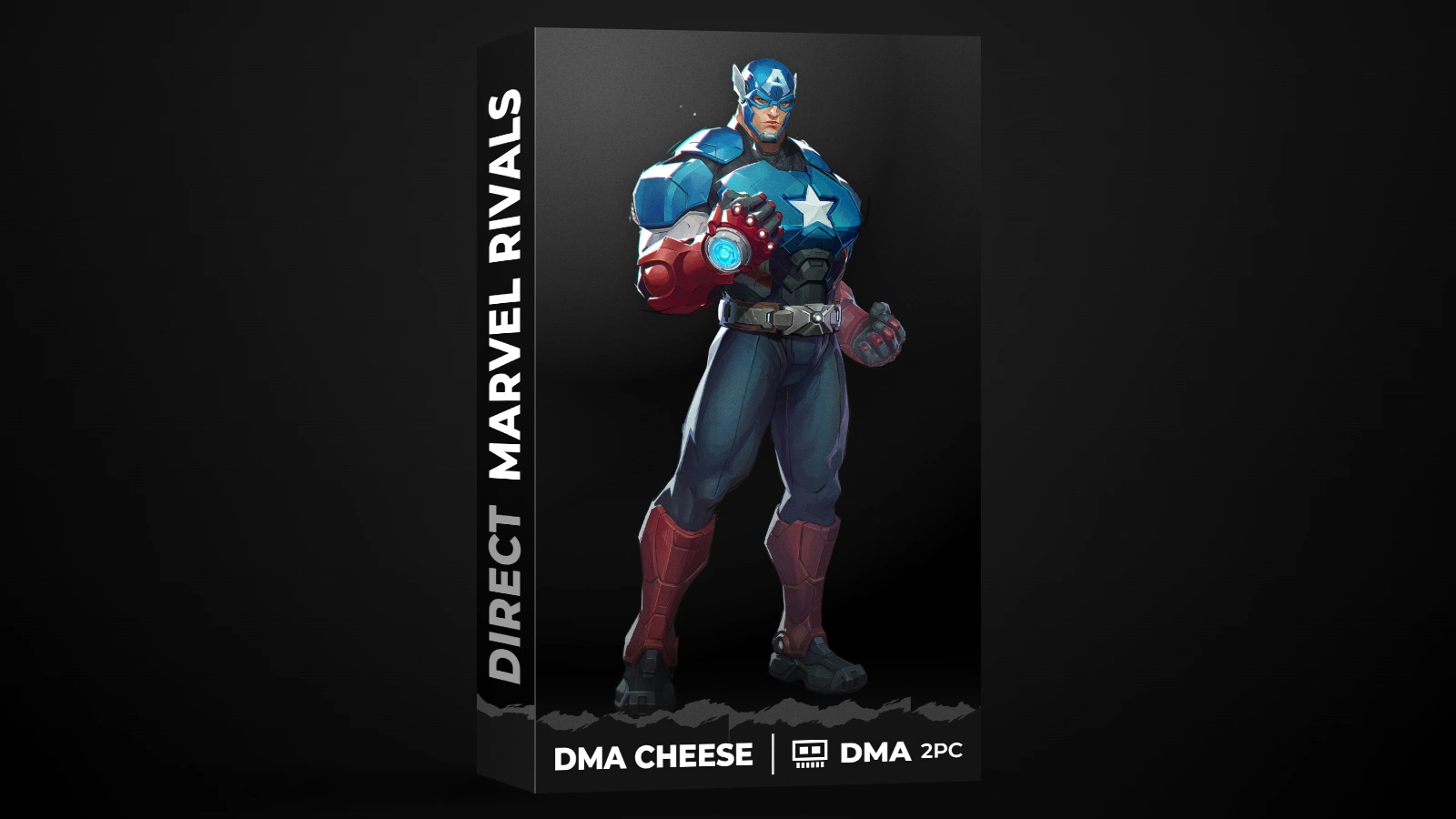
Description
🎯 Aimbot
- Override global config – Use your own custom aimbot settings instead of the default ones
- Per Hero Role – Set different aimbot behavior for each hero you play
- Block double input – Prevents the aimbot from registering two inputs at once, keeping your aim stable
- Mouse sensitivity – Adjust how responsive your mouse feels when the aimbot is active
- Enable aimbot – Turns the aimbot on or off with a single toggle
- Aimbot distance – Set how far away the aimbot will lock onto targets
- Ignore targets – Choose which players to skip over, like teammates or downed enemies
- FOV algorithm – Select the method used to detect targets within your field of view
- Aimbot FOV – Control how wide the aimbot’s targeting cone is — smaller means more precise
- Smooth algorithm – Pick how the aimbot transitions between targets for a more natural feel
- Aimbot speed – Adjust how fast the aimbot snaps to targets
- Target priority – Decide which target the aimbot locks onto first — closest, lowest health, or highest threat
- Hitbox selection – Choose exactly which body part to aim for, like head or chest
- Hitbox drift – Adds slight movement to the aim point to make it look less robotic
- Position adjustment – Fine-tune exactly where the aimbot actually aims on the target
- Hardlock – Locks your aim onto a target without letting go until they’re eliminated
- Humanize – Makes the aimbot behave more like a real player with tiny mistakes and delays
- Deadzone – Creates a small area around your crosshair where the aimbot won’t activate
- Always on – Keeps the aimbot active at all times, even when you’re not using abilities
- Delay death – Waits a moment after eliminating a target before switching to a new one
- Delay new target – Adds a brief pause before locking onto the next enemy
🎯 Triggerbot
- Override global config – Use your own custom triggerbot settings instead of the default ones
- Per hero role – Set different triggerbot behavior for each hero you play
- Enable triggerbot – Turns the triggerbot on or off with a single toggle
- Triggerbot distance – Set how far away the triggerbot will detect and fire at targets
- Ignore targets – Choose which players to skip over, like teammates or downed enemies
- Auto fire – Automatically fires as soon as your crosshair is on target
- Hitchance – Set the percentage of accuracy required before the triggerbot fires
- Delay between shots – Add a pause between each shot to control fire rate
- Delay death – Waits a moment after eliminating a target before looking for a new one
- Delay new target – Adds a brief pause before locking onto the next enemy
⚔️ Combat
- Enable combat – Turns combat assistance features on or off
- Only if targeting – Only activates combat features when you’re already aiming at someone
- Hela combo – Automates Hela’s ability rotation for maximum damage output
- Psylocke combo – Automates Psylocke’s ability rotation for maximum damage output
- Magik melee cancel – Cancels melee animations to attack faster with Magik
- Strange reload – Automatically manages Doctor Strange’s reload for maximum uptime
- Thor combo – Automates Thor’s ability rotation for maximum damage output
- Warlock spam – Spams Adam Warlock’s abilities for constant pressure
👁️ Visuals Main
- Render settings (Main / Misc / State / Layer) – Choose which visual layers you want displayed
- Enable players – Turns player ESP on or off
- Players distance – Set how far away you can see player ESP
- Ignore filter – Skip certain players from being rendered
- Username – Display player names above their heads
- Bounding Box – Draw a box around each player’s body
- Skeleton – Show a stick-figure outline of each player’s bones
- Health Bar – Display each player’s health above their head
- Hero – Show which hero each player is using
- Distance – Display how far away each player is
- K/D – Show each player’s kill-to-death ratio
- Ultimate – Display each player’s ultimate ability status
- Input Type – Show whether a player is using keyboard/mouse or controller
- Hero Avatar – Display a small hero icon above each player
- Snapline – Draw a line from your character to each enemy for easy targeting
- Position arrow – Show an arrow pointing toward off-screen enemies
- Keybind status – Display which hotkeys are currently active
- Hero status – Show hero information and ability cooldowns
- Crosshair – Display a custom crosshair on screen
- Aimbot FOV – Show your aimbot’s field of view on screen
- Deadzone FOV – Show your aimbot’s deadzone on screen
👁️ Visuals Misc
- Font (Verdana) – Choose the font style for ESP text
- Render font size – Adjust how big or small ESP text appears
- Skeleton outline – Add a border around the skeleton for better visibility
- Skeleton thickness – Control how thick the skeleton lines are
- Bounding box style – Pick how the bounding box looks — solid, outline, or corners
- Healthbar damage fade – Makes health bars fade as players take damage
- Text background – Add a dark background behind text for easier reading
- Text outline – Add a border around text for better visibility
- Radar render layer (Foreground / Background) – Choose whether radar appears on top of or behind other elements
- Keybind status render layer (Foreground / Background) – Choose where keybind status appears
- ESP render layer (Foreground / Background) – Choose where ESP elements appear on screen
- Teammate state – Show extra info about your teammates like health and ult status
- Console state – Display information for players using console controllers
📡 Radar
- Overlay radar – Show a mini-map overlay on your screen
- Overlay radar grid – Add grid lines to the radar for better positioning
- Overlay radar distance – Set how far the radar can detect enemies
- Overlay radar filter – Choose what types of enemies appear on radar
- Overlay radar type – Pick the radar display style
- Overlay radar transparency – Adjust how see-through the radar is
- Overlay radar rounding – Round the corners of the radar display
- Radar local – Show your own position on radar
- Radar enemy – Show enemy positions on radar
- Enemy size – Adjust how big enemy dots appear on radar
- Enemy style – Choose the appearance of enemy dots on radar
- Radar teammate – Show teammate positions on radar
- Teammate size – Adjust how big teammate dots appear on radar
- Teammate style – Choose the appearance of teammate dots on radar
⚙️ Miscellaneous
- Local Configs – Save and load settings from your computer
- Cloud Configs – Save and load settings from the cloud for use on any PC
- Displays all players in current match – See every player in the match, their teams, heroes, and stats
- Visibility accuracy – Controls how precisely the game checks if targets are visible
- Increased priority – Gives the software higher system priority for smoother performance
- Vertical synchronization – Matches frame rate to monitor refresh rate to prevent screen tearing
- Framerate limit – Caps your maximum frames per second for stability
- Priority monitor – Choose which monitor to display overlays on
- Input delay – Adjust input lag compensation
- Overlay mode – Choose how overlays are rendered on screen
- Window style – Change the appearance of the software window
- Mouse mode – Select how the software interacts with your mouse
- Minimize type – Choose how the software behaves when minimized
- Unload Software – Safely close the software
- Reconnect DMA – Reconnect the DMA card if it disconnects
- Reconnect HID – Reconnect your HID device if it disconnects
- Force HID movement – Override and control mouse movement via HID
- Force HID button press – Override and control button presses via HID
- Reset Cache – Clear saved data to fix issues