
How to Check and Update Your KMbox B Pro Version
Keeping your KMbox B Pro firmware up to date is essential for optimal performance. Here’s a step-by-step guide to help you check your current version, update the firmware, and activate your device.
Step 1: Check Your KMbox B Pro Version
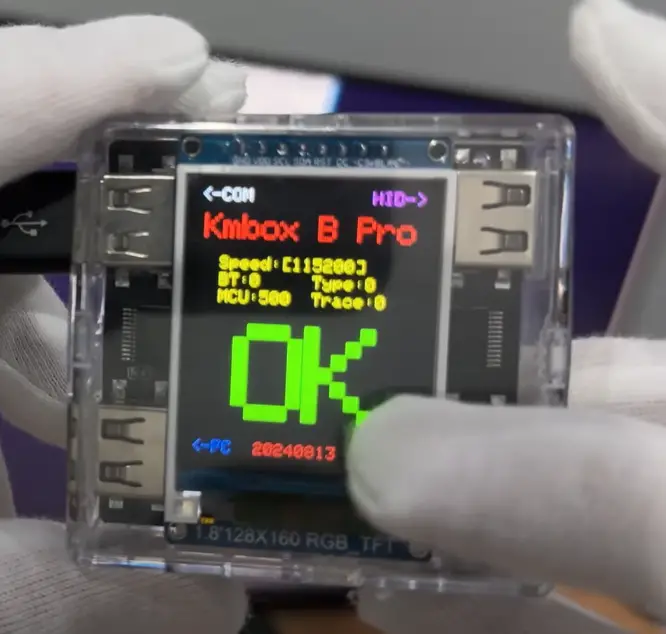
- Connect Your KMbox B Pro to Your PC:
- Use a USB cable to connect your KMbox B Pro to your PC.
- Locate the Version Information:
- Once connected, find the version information on the device’s screen.
- Check for the Latest Version:
- Visit the KMbox Discord server to find the latest firmware update.
- If your version is not up to date, proceed to update it.
Step 2: Prepare for Firmware Update
- Download the DMA Toolbox:
- If you don’t already have it, you can purchase the DMA Toolbox in our Discord server.
- Connect KMbox to a Second PC:
- Connect your KMbox B Pro to a second PC for the firmware update process.
- Run the Firmware Updater:
- On the second PC, navigate to the DMA Toolbox and run the Firmware Updater.
- Click on
Tools >> Serialand take note of the COM number displayed.

- Identify the COM Port:
- Disconnect your KMbox from the second PC and see which COM number disappears.
- Reconnect the KMbox and wait about 20 seconds for it to reconnect.
- Select the COM Port:
- Select the COM number you noted earlier (e.g., COM4).
- A check mark should appear at the bottom, confirming the connection. If an error occurs, reconnect the KMbox and restart the Firmware Updater.
Step 3: Flash the Firmware
- Initiate Firmware Flashing:
- In the Firmware Updater, go to
Tools >> Burn Firmware.
- In the Firmware Updater, go to
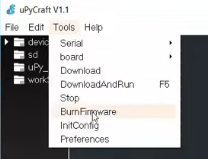
- Set the burn address to
0x1000and changeErase FlashtoYes. - Double-check that the COM number is correct.
- Select the Firmware File:
- Click
Firmware Choose, navigate toUsers, thenChoose. - Select the firmware file from the
DMA Cheese Toolbox\KMbox\KMbox B Pro\Firmwarefolder. - Click
OKand wait for the flashing process to complete, which should take about 1-2 minutes.
- Click
- Verify the Update:
- After the flashing process, check the KMbox screen to ensure the firmware version has been updated.
- If the screen displays “Please Activate,” proceed to the activation step.
Step 4: Activate the KMbox B Pro
- Run the Activation Program:
- On the second PC, go to the relevant folder and run the corresponding
.exefile.
- On the second PC, go to the relevant folder and run the corresponding

- Enter the COM Number:
- Input the COM number you noted earlier (e.g., COM4) and click the activation button.
- Verify Activation:
- If the activation is successful, a message will appear confirming it.
- Check your KMbox screen to ensure the update is complete.
Troubleshooting Activation Issues
- Failed Activation:
- If activation fails, unplug the KMbox from the second PC, plug it back in, and try activating again.
- If it still fails, your KMbox B Pro might not be an original device and cannot be activated. However, you may still be able to use it with limited functionality.
By following these steps, you can ensure that your KMbox B Pro is running the latest firmware and is properly activated. This will help you get the most out of your device.
Want To Get Started With DMA Cheats?
Click Here to Join our exclusive Discord community to get started cheating in your favorite video games!
- COMMUNITY: Connect with fellow DMA gamers and find teammates
- UPDATES: Be the first to know about new updates and features
- SUPPORT: Get personal help and tips directly from me