
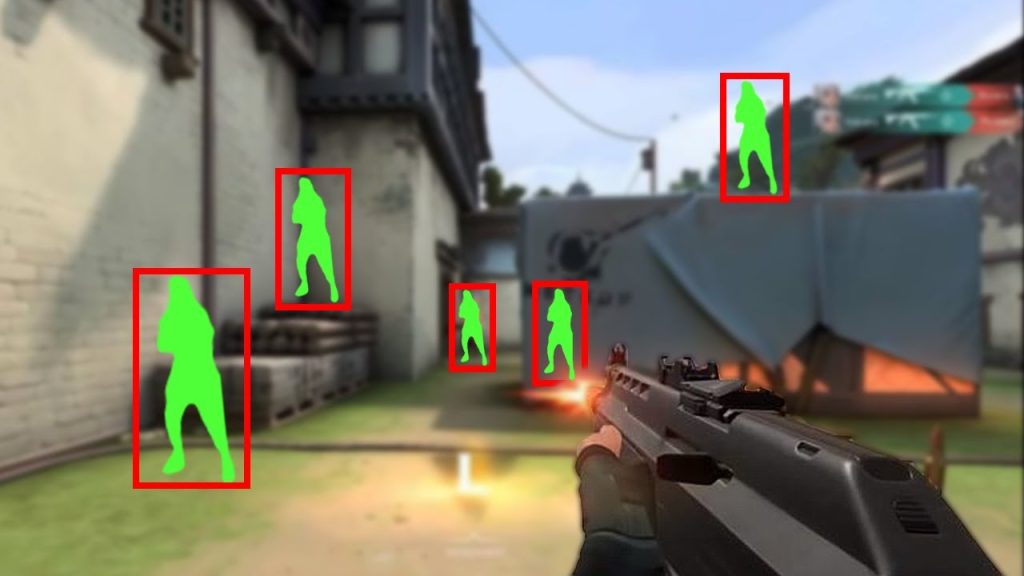
If you use a DMA-based ESP in games like Warzone or Apex, you know the pain: your ESP feels sluggish, the boxes drag behind enemies, and you end up shooting at ghosts. That’s latency—a delay between what’s happening in the game and what your ESP shows you.
The good news? You can fix a lot of this yourself, no developer skills needed. Think of this as your checklist for a buttery-smooth ESP.
Why Does My ESP Feel Laggy?
- Slow Hardware: An older DMA card simply can’t pull data fast enough. It’s like trying to download a game on dial-up.
- Traffic Jams: Your DMA card shares a data highway (PCIe lanes) inside your PC with other parts, like your graphics card. If that highway is clogged, your data arrives late.
- Bad Settings: Sometimes, your software just isn’t set up to read data in the most efficient way. It’s like re-reading an entire book every time you need one sentence.
The result? Your ESP is always a step behind the actual game. Let’s fix that.
Simple Tips to Increase Read Speeds & Reduce Lag
Close the Data Highway for Other Traffic
Imagine your DMA card is trying to merge onto a busy highway. The fewer cars, the better.
- What to do: Plug your DMA card into a PCIe slot that does not share bandwidth with your GPU or super-fast NVMe SSD. Your motherboard manual will tell you which slots share lanes. A PCIe riser cable can help you use an isolated slot physically.
- Why it works: This gives your DMA card a dedicated, empty highway for game data, cutting down on traffic jams.
Set Up Your Software for Maximum Speed
Your DMA software might have built-in settings that can seriously reduce lag. Don’t just leave everything on default. Go into your settings and flip these three switches ON:
- Async (Asynchronous) Reads – Lets your ESP fetch the next batch of data before the first one finishes. Like having two hands instead of one.
- Delta Reads (Changed Data Only) – Only scans what actually changed in memory, instead of re-reading everything a thousand times a second.
- Multi-threaded Parsing – Splits the heavy number-crunching across multiple CPU cores so your overlay draws faster.
Why it works: Together, these three settings stop your ESP from sitting around waiting, cut out useless work, and get the important data onto your screen way faster. It’s the easiest, zero-cost performance boost you can do right now.
Upgrade from a 35T to a 75T or 100T Card
If you’re still rocking an older 35T card, this is your single biggest bottleneck. It’s the difference between a bicycle and a sports car.
- What to do: Upgrade to a 75T or even a 100T DMA card. The jump in speed is massive.
- Why it works: These newer cards are built to shovel data way faster. For fast-paced FPS games, this upgrade is often night and day.
Small Tweaks That Actually Make a Difference
These little things add up. Don’t skip them.
- Use a USB 3.2 Cable (10Gbps Rated): Cheap cables kill speed. Get a proper USB 3.2 cable rated for 10Gbps data transfer. Bonus tip: the shorter, the better. A 3ft cable is perfect. Longer cables can introduce signal degradation and latency.
- Set Your 2nd PC to Ultimate Performance Power Mode: If you’re running a two-PC setup, your second PC (the one running the DMA card and overlay) needs to be wide awake at all times.
- How to do it: Go to Control Panel > Power Options and select “Ultimate Performance.” If you don’t see it, click “Show additional plans.” This stops your PC from ever throttling down to save power, keeping your reads fast and consistent.
- Turn Off USB Power Saving: While you’re in power settings, go to your USB controller properties in Device Manager and uncheck “Allow the computer to turn off this device to save power.” Do this for every USB hub and controller. Power-saving hiccups can cause random micro-stutters.
- Kill Background Bloat: On your 2nd PC, close everything you don’t need. Browsers, Discord, RGB software, Windows widgets—shut them all down. Every bit of freed-up CPU and memory helps your parser run faster.
One Last Setup Trick: Sync the Image
Lag can also just be a visual mess where your overlay and game don’t line up.
- The Fix: Turn on “Overlay VSync” in your ESP software settings.
- What it does: It forces your ESP boxes to only update when your game draws a new frame, so the two are perfectly in sync. No more boxes that look like they’re floating ahead or behind.
The “Before and After” Reality Check
A buddy’s Warzone ESP was borderline useless—felt like a 200ms delay, constantly trailing targets. By doing three things:
- Upgraded from a 35T to a 75T card.
- Turned on “Async Reads.”
- Switched to a dedicated PCIe slot and used a short 3ft USB 3.2 cable.
The delay vanished, dropping to under 50ms. The ESP now sticks to enemies like glue. That’s the power of just a few smart tweaks.
Your Ultimate No-Lag Checklist
- [ ] Is my DMA card in its own dedicated PCIe slot?
- [ ] Am I using a short (3ft), 10Gbps-rated USB 3.2 cable?
- [ ] Is my 2nd PC power plan set to “Ultimate Performance”?
- [ ] Have I turned off USB power saving in Device Manager?
- [ ] Did I close all unnecessary programs on my 2nd PC?
- [ ] Did I turn on “Async Reads” and “DMA Acceleration” in my software?
- [ ] Did I enable “Delta Reads” to scan only changed data?
- [ ] Did I turn on “Multi-threaded Parsing”?
- [ ] If I’m on a 35T card, have I seriously considered upgrading to a 75T or 100T?
- [ ] Did I enable “Overlay VSync” for smooth visuals?
Go through this checklist, make the changes, and enjoy a responsive ESP that actually shows you where enemies are right now.
Want To Get Started With DMA Cheats?
Click Here to Join our exclusive Discord community to get started cheating in your favorite video games!
- SUPPORT: Get personal help and tips directly from me
- COMMUNITY: Connect with fellow DMA gamers and find teammates
- UPDATES: Be the first to know about new updates and features